ABR Pulse
Try ABR Pulse yourself
ABR Pulse shows you how your customers feel at each stage of their build, and helps your office fix a problem before it becomes a bad review. This guide lets you try it yourself in about 30 minutes.
You play two people:
- Your customer, on your phone. You get a text, answer a short survey, and get a reply.
- Yourself, running the business, on a laptop. You get an email when the answer arrives, deal with it, and approve the reply.
Everything belongs to Bench Build Co, a made-up builder with made-up customers. The only real thing is your mobile number, so the texts come to you.
Tip: in Chrome, right-click the portal’s tab and choose New split view with current tab to see it beside this list.
- A laptop with two browser tabs:
- The portal: what your office would use every day.
- The demo controls: the same address, ending in
/bench. They do the things that happen on their own in live use, such as sending a text when a build reaches a stage.
- Your phone, with signal.
- Your email, open on your phone or laptop.
- The sign-in ABR gave you:
[email protected]and its password.
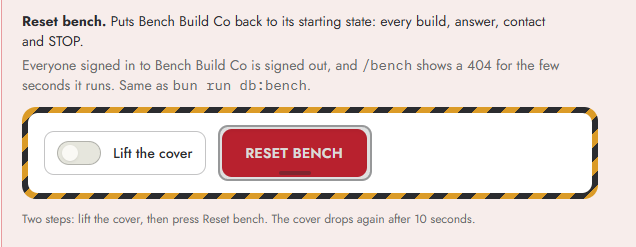
If someone has used this demo before you, reset it. In the demo controls, open the Fixtures tab and find Reset bench. Lift the cover, then press the red button. It takes a few seconds and signs everyone out of the portal, so do it before you sign in. https://portal.devspulse.net/bench?tab=fixtures (opens in a new tab)
 Open the screenshot full size in a new tab
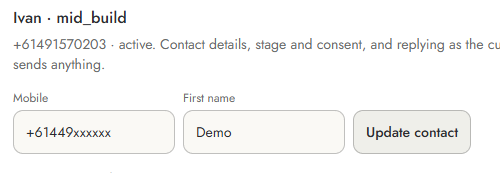
In the demo controls, open Drive a build. Find Ivan's row and press Controls. Type your mobile and first name, then press Update contact. Use Ivan's build only (for consistency). Then close the modal (popup) window.
 Open the screenshot full size in a new tab
 Open the screenshot full size in a new tab
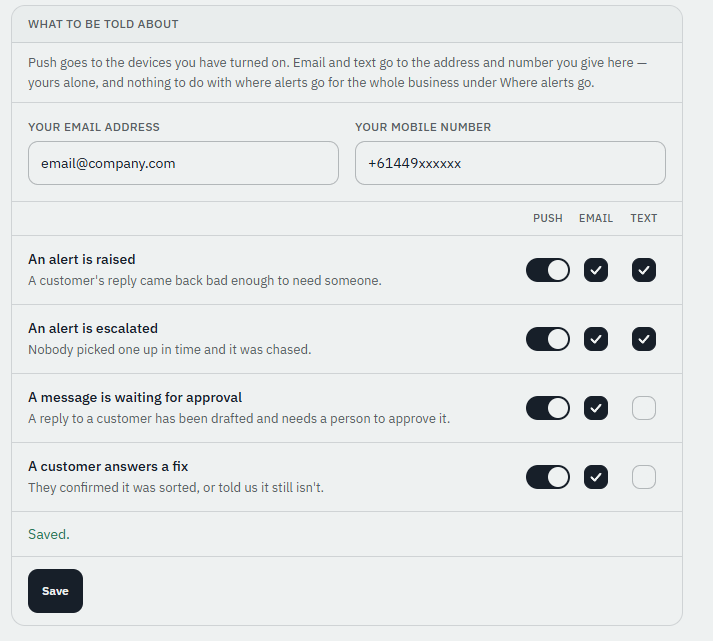
In the portal tab, sign in as [email protected]. Open the account menu (your name) and choose Notifications. Type your own email address. In the Email column, turn on An alert is raised and A message is waiting for approval, then press Save. Each person in the office chooses what they are told about, and how.
 Open the screenshot full size in a new tab
Your house is at Frame & Lockup: walls up, roof on. This is where delays and extra costs usually come up.
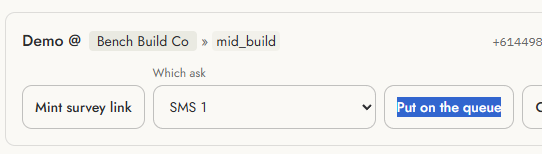
On Ivan's row (now with your name), choose SMS 1 and press Put on the queue. In live use this happens when the build reaches the stage.
 Open the screenshot full size in a new tab
It comes from the builder by name and asks one question: how well the site supervisor has kept you in the loop, from 1 to 5.
Just the number, as a text.
You do not press anything. If it has not come after a minute, send it from the demo controls: on Ivan's (or your name) row, choose SMS 2 and press Put on the queue. It asks about delays or extra costs that were not explained. You can reply with a few words, reply 0 if all is good, or tap the link for the full survey. You can do both.
For example Nobody told me the frame was a week late. Then tap the link. A short survey opens with your first name. No login, no menu.
- Delays: Yes, not explained
- Variations or extra costs: 2
- Everything else: 4, or Sometimes and Partly where there is no number
- Add a sentence if you like.
You see Thanks — that's come through, and a line saying someone will read it and be in touch if you flagged a problem.
It will not let you answer twice.
Back in the portal tab. This is your Monday morning.
Within about 5 minutes of sending your answers, an email arrives headed Alert raised: your first name, "replied and it needs someone", and a link to the alert. It gives the customer's first name only, never their words. In live use, this is how your office hears about a problem without watching the portal.
Four tiles: Overall NPS, Would recommend, Needs attention and Active builds. Your unhappy answer is already under Needs attention.
Every score shows how many answers it comes from, so a score from 2 answers never looks as solid as one from 200.
Staff are scored by role, such as site supervisor or customer liaison. Someone with only one or two answers shows Not enough responses yet, not a number.
Filter by stage, then by score. Open your own answer: every question, every answer and your sentence.
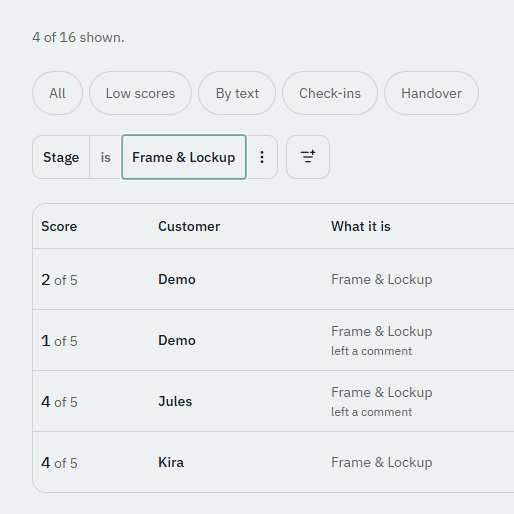 Open the screenshot full size in a new tab
Your answer raised an alert. This is how your office turns a bad moment into a customer who feels looked after, with a person approving every word before it goes out.
Your name goes on it, so the rest of the office can see someone is handling it.
For example Rang the customer, site supervisor visiting Thursday. Notes stay inside the office. The customer never sees them.
In the demo controls, open Drive a build, go to Alerts, choose your alert under Draft the reply, and press Create an alert draft. Back in the portal, refresh the alert. Read the draft as the customer would: is it warm and plain, and does it say what happens next?
Arrives within about 5 minutes, headed A reply needs approving. You do not need to wait for it; carry on.
Approving and sending are separate steps, so nothing goes out by accident.
In Settings, under Approving a customer message, turn on Second person must approve. Now the person who claimed an alert cannot also approve its reply. Turn it off again afterwards.
That queues the survey for the new stage. Do it again: nothing extra is queued. One stage, one survey.
Paste three made-up jobs from a spreadsheet. You see each row, with any problems flagged, before anything is saved.
Every question at every stage. You can rename job titles to your own, such as Construction Supervisor, but not the questions. Every builder is asked the same questions, which is what makes comparing builders fair.
Every change, who made it, and when.
These are built into the system, not just left off the screens.
- Send a customer a message nobody approved. The system itself refuses it.
- Text someone who said STOP. A customer who texts STOP gets nothing more from that builder, on any of their jobs. Your office sees it, and no reply is offered. Nobody in the office can undo it. If you try this in the demo, do it last: after a STOP, no more demo texts reach you until you reset.
- Text at night. Messages wait for your sending hours.
- Ask for a review or a rating.
- Put customer details in a link. A survey link carries a random code, never a name or a phone number.
If anything looks wrong or breaks while you try this, tell us from the screen you are on.
Untick them if you prefer not to send them.
You get a reference number. Nobody replies yet, but your report goes on our list.
In the demo controls, Fixtures, Reset bench: lift the cover, then press. This takes your mobile off, resets to the name to Ivan's build, removes the email address you entered and clears a STOP if you sent one.